Mathematical Expressions
Introduction
LaTeX's mathematical typesetting capabilities make it a compelling choice for writing technical documents. This article introduces the most basic commands to start writing mathematics with LaTeX.
For example, writing basic equations with LaTeX is simple:
\documentclass{article}
\begin{document}

The well known Pythagorean theorem \(x^2 + y^2 = z^2\) was
proved to be invalid for other exponents.
Meaning the next equation has no integer solutions:

\[ x^n + y^n = z^n \]

\end{document}

As you can see, the way equations are displayed depends on the delimiters, in this case \[...\] and \(...\).
Mathematical Modes
LaTeX allows two writing modes for mathematical expressions: inline math mode and display math mode.
- Inline math mode is used to write formulas that belong within a paragraph.
- Display math mode is used to write expressions that are not part of a paragraph and are therefore placed on separate lines.
Inline Math Mode
You can use any of these "delimiters" to typeset your mathematics in inline mode.
\(...\)$...$\begin{math}...\end{math}
They are all valid, and the choice is a matter of taste, so let's look at some examples:
\documentclass{article}
\begin{document}

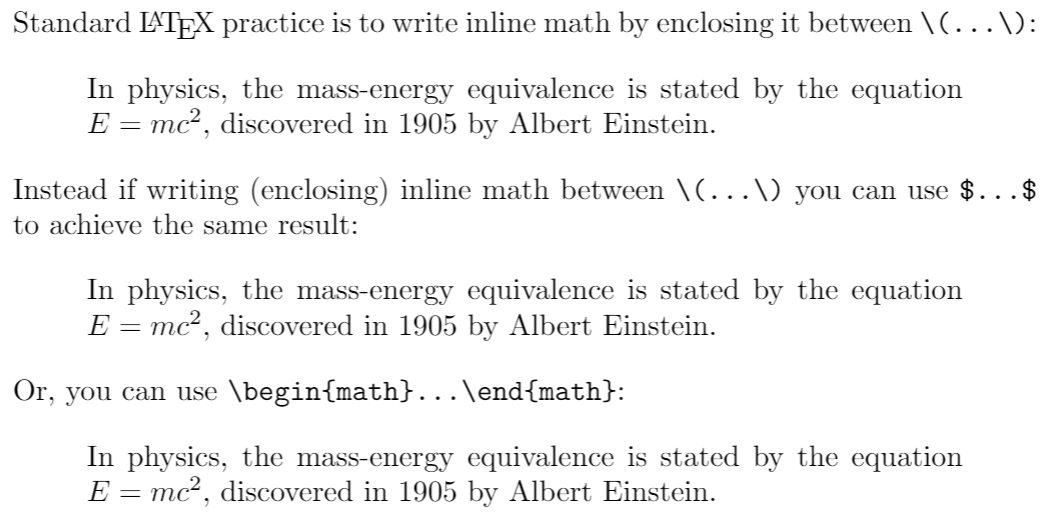
\noindent Standard \LaTeX{} practice is to write inline math by enclosing it between \verb|\(...\)|:

\begin{quote}
In physics, the mass-energy equivalence is stated
by the equation \(E=mc^2\), discovered in 1905 by Albert Einstein.
\end{quote}

\noindent Instead if writing (enclosing) inline math between \verb|\(...\)| you can use \texttt{\$...\$} to achieve the same result:

\begin{quote}
In physics, the mass-energy equivalence is stated
by the equation $E=mc^2$, discovered in 1905 by Albert Einstein.
\end{quote}

\noindent Or, you can use \verb|\begin{math}...\end{math}|:

\begin{quote}
In physics, the mass-energy equivalence is stated
by the equation \begin{math}E=mc^2\end{math}, discovered in 1905 by Albert Einstein.
\end{quote}
\end{document}
Display Math Mode
Use one of these structures to typeset mathematics in display mode.
\[...\]\begin{displaymath}...\end{displaymath}\begin{equation}...\end{equation}
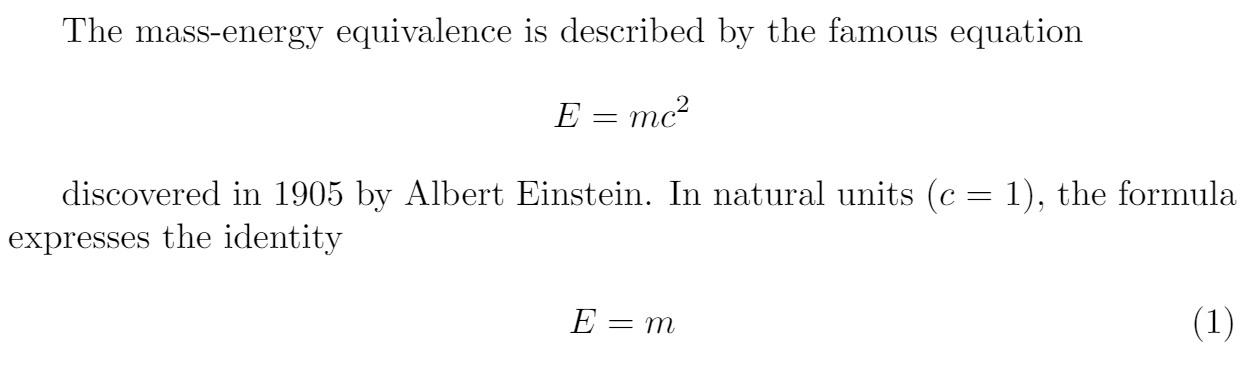
Display math mode has two versions that can produce numbered or unnumbered equations. Let's look at a basic example:
\documentclass{article}
\begin{document}
The mass-energy equivalence is described by the famous equation

\[E=mc^2\]

discovered in 1905 by Albert Einstein.
In natural units ($c$ = 1), the formula expresses the identity

\begin{equation}
E=m
\end{equation}
\end{document}
Another Example
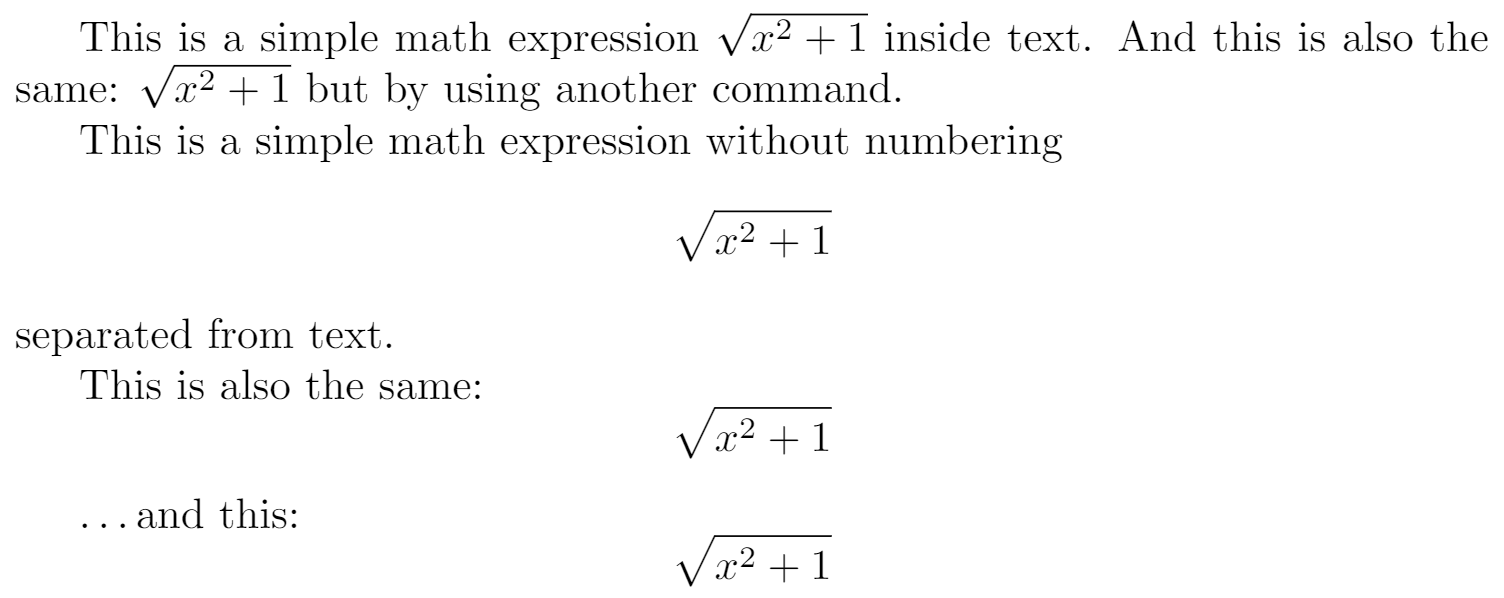
The following example uses the equation* environment provided by the amsmath package—see the amsmath article for more information:
\documentclass{article}
\usepackage{amsmath} % for the equation* environment
\begin{document}

This is a simple math expression \(\sqrt{x^2+1}\) inside text.
And this is also the same:
\begin{math}
\sqrt{x^2+1}
\end{math}
but by using another command.

This is a simple math expression without numbering
\[\sqrt{x^2+1}\]
separated from text.

This is also the same:
\begin{displaymath}
\sqrt{x^2+1}
\end{displaymath}

\ldots and this:
\begin{equation*}
\sqrt{x^2+1}
\end{equation*}

\end{document}
Reference Guide
Below is a table containing some common mathematical symbols. For a more complete list, see the list of Greek letters and mathematical symbols.
| Description | Code |
|---|---|
| Greek Letters | \alpha \beta \gamma \rho \sigma \delta \epsilon |
| Binary Operators | \times \otimes \oplus \cup \cap |
| Relation Operators | < > \subset \supset \subseteq \supseteq |
| Others | \int \oint \sum \prod |
Different categories of mathematical symbols have different formatting characteristics (e.g., variables are italicized, but operators are not) and different spacing.
Further Reading
Mathematical mode in LaTeX is very flexible and powerful, with many things that can be accomplished with it.
- Subscripts and superscripts
- Brackets and Parentheses
- Fractions and Binomials
- Aligning Equations
- Operators
- Spacing in math mode
- Integrals, sums and limits
- Mathematical fonts
- Display style in math mode
- List of Greek letters and math symbols