Creating a LaTeX Document
LaTeX is a great tool for creating documents. It's based on the "What You See Is What You Mean" (WYSIWYM) philosophy, which means you only need to focus on the content of the file, and the computer will handle the formatting. With LaTeX, creating professionally-looking materials is very easy. This article introduces the basics of how to create documents.
Introduction
Let's start with the simplest working example.
\documentclass{article}

\begin{document}
First document. This is a simple example, with no
extra parameters or packages included.
\end{document}
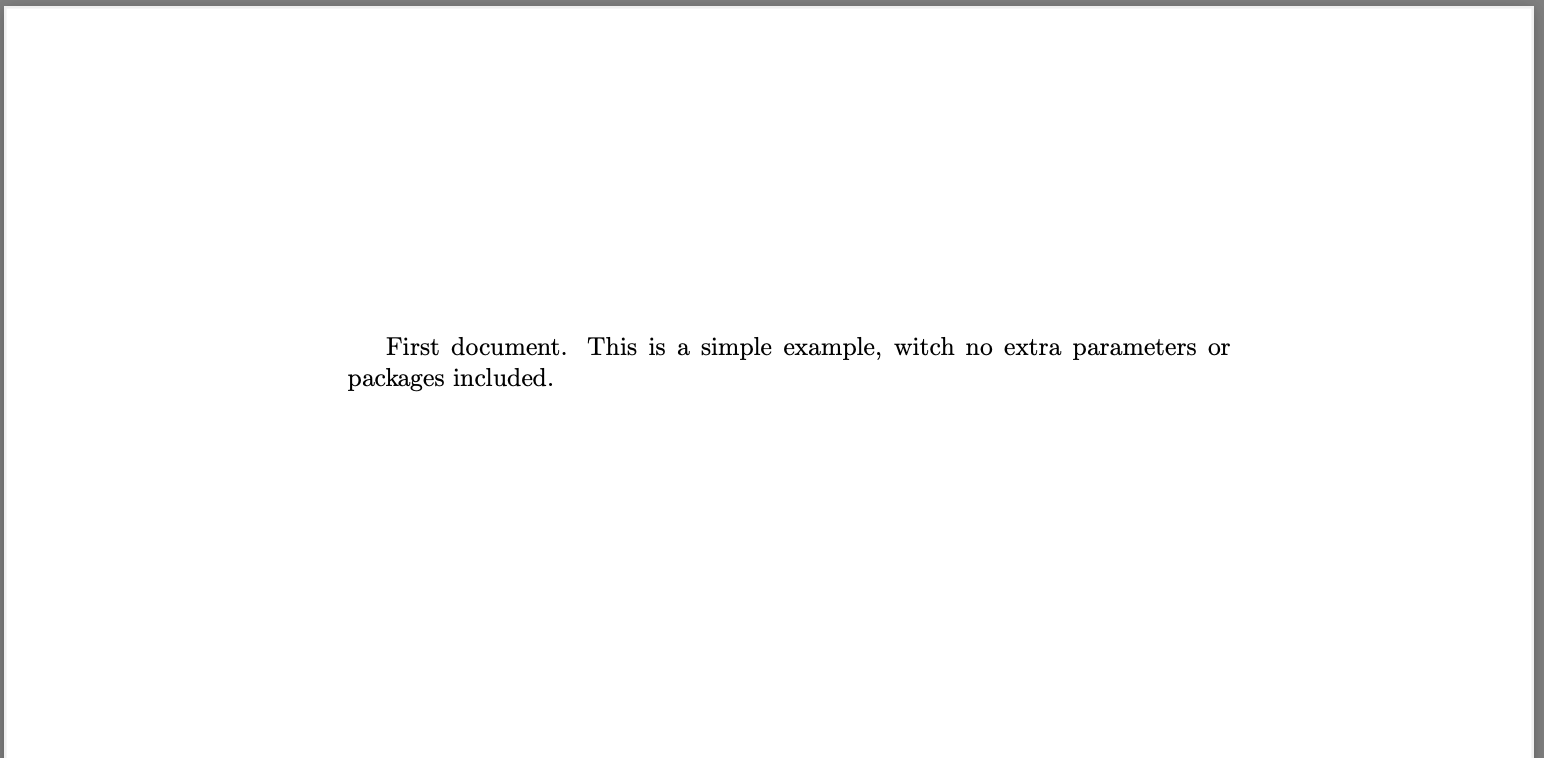
The input file is just a plain text file with the extension .tex. It will contain code that the computer interprets to produce a PDF file. The first line of code declares the type of file, in this case, an article. Then, between the \begin{document} and \end{document} tags, you just need to write the text.
To learn how to generate output files, see our article on compilation.
Document Preamble
In the previous example, the text was entered after the \begin{document} command. The part of your .tex file before this is called the preamble. In the preamble, you define the type of document you're writing and the language, load additional packages you need, and set several parameters. For example, a normal document preamble looks like this.
\documentclass[12pt, letterpaper]{article}
\usepackage[utf8]{inputenc}

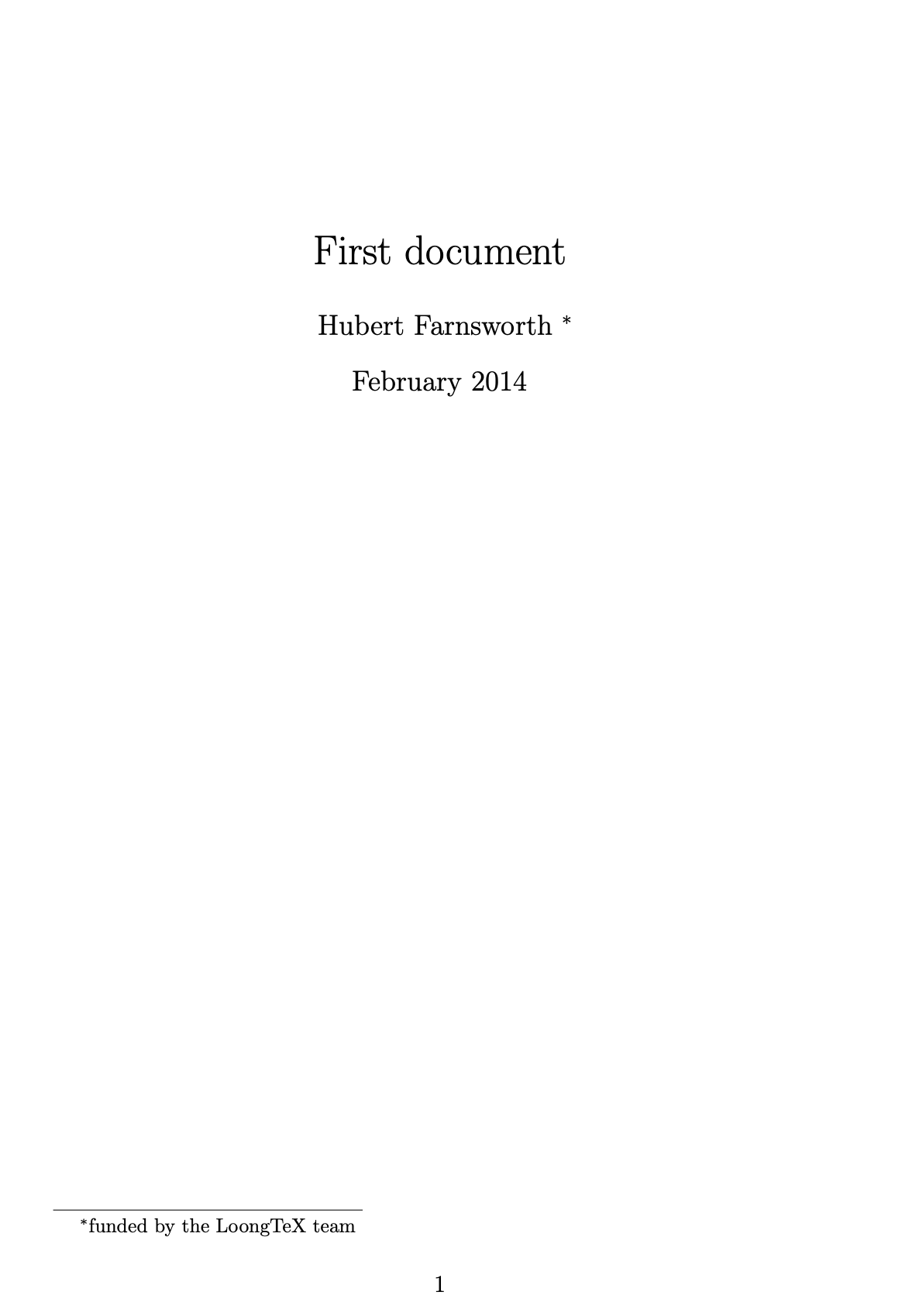
\title{First document}
\author{Hubert Farnsworth \thanks{funded by the Overleaf team}}
\date{February 2014}uu
Below is a detailed description of each line.
\documentclass[12pt, letterpaper]{article}
As mentioned earlier, this defines the type of document. Some additional parameters, separated by commas within brackets, can be passed to the command. In this example, the additional parameters set the font size (12pt) and paper size (letterpaper). Of course, other font sizes can be used (9pt, 11pt, 12pt), with the default size being 10pt. As for paper size, other possible values include A4 and legalpaper. Note that Overleaf uses the European LaTeX distribution, which produces documents in A4 size by default. For information on using the Geometry package to set more formatting parameters, see our Page size and margins article.
\usepackage[utf8]{inputenc}
This is the encoding of the document, allowing the use of characters other than ASCII in the text (e.g., à, ü, č ...). It can be omitted or changed to other encodings, but utf-8 is recommended. Unless you specifically need another encoding, or you're unsure, add this line to the preamble.
The next three lines are self-descriptive. In summary, you can see their actual function in the next section.
Another important parameter that can be passed to the \documentclass command is twocolumn, if you want your text to be in two-column format, and twoside for double-sided paper printing.
Displaying Your Document's Title
To display your document's title, you must declare its components in the preamble and then use some additional code:
\documentclass[12pt, letterpaper, twoside]{article}
\usepackage[utf8]{inputenc}

\title{First document}
\author{Hubert Farnsworth \thanks{funded by the Overleaf team}}
\date{February 2014}

\begin{document}

\begin{titlepage}
\maketitle
\end{titlepage}

In this document some extra packages and parameters
were added. There is an encoding package
and pagesize and fontsize parameters.

\end{document}